
Generate video clips
Animate each shot on the Videos tab, choose a model, and control exactly what characters say.
Updated
On this page
The Videos tab turns each shot's still into a moving clip. Pick a model, check the prompt, and generate.
Choose a video model
The studio offers several video models, and the default (Seedance 2.0) is a strong all-rounder. Models differ in motion quality, how well they keep faces consistent, whether they generate sound, which clip lengths and resolutions they support, and price. The credit cost on the generate button updates as you change model, length, or resolution, so you can compare before you spend.
Which models you see depends on your workspace, and a 21:9 project shows only the models that support cinemascope.
What characters say comes from the prompt box
The prompt box you see is exactly what the model receives, including dialogue:
- To have a character speak, put the line in the prompt, in quotes, with who says it.
- To keep a shot silent, make sure there is no line in the prompt. Silent shots still get ambient sound and sound effects; only the talking is removed.
- Edited a line? The clip uses your edit, not the line from the original script.
Review your takes
Generation runs in the background, so you can keep working while clips render. Every take stays with the shot: compare them and pick the keeper. If a clip is close but not right, adjust the prompt (the camera move, the action, the pacing) and generate again.
Draft first, then final
Where Draft Mode is available on your workspace, you can render a cheaper, lower-resolution draft of a clip first, get the motion right, then finalize it at full resolution.
If a clip fails
If a generation fails on our side, the credits held for it are released back to your balance. If the model refuses the prompt, see When a generation fails or is blocked.
Was this guide helpful?
Watch it on video
 5:05Video: How to Use Kling 3.0 Turbo to Make Realistic VideosTurn your generated images into realistic AI video with the Kling 3.0 Turbo model.
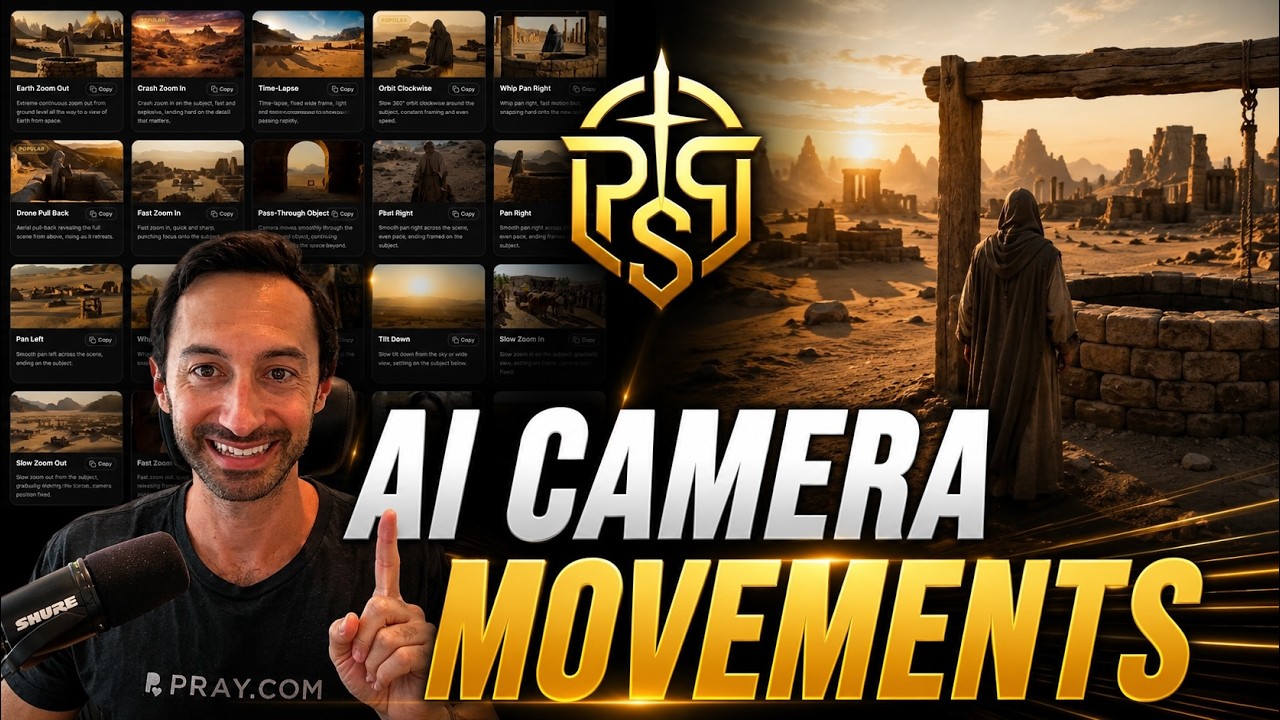 0:58Video: AI Camera Movements for Generating Epic VideosBrowse the camera move library and drop cinematic motion into any shot. Add pushes, pans, orbits, and crane moves to make your AI videos feel epic.
Related guides
- Generate images for your shotsMake the still for each shot on the Images tab, then refine it with Freestyle Mode, edits, and upscaling.
- When a generation fails or is blockedWhat each kind of failure means, what to try next, and what happens to your credits.
- How credits workCredits pay for every image, clip, and voice you generate. Here is how they are counted, held, and refilled.